
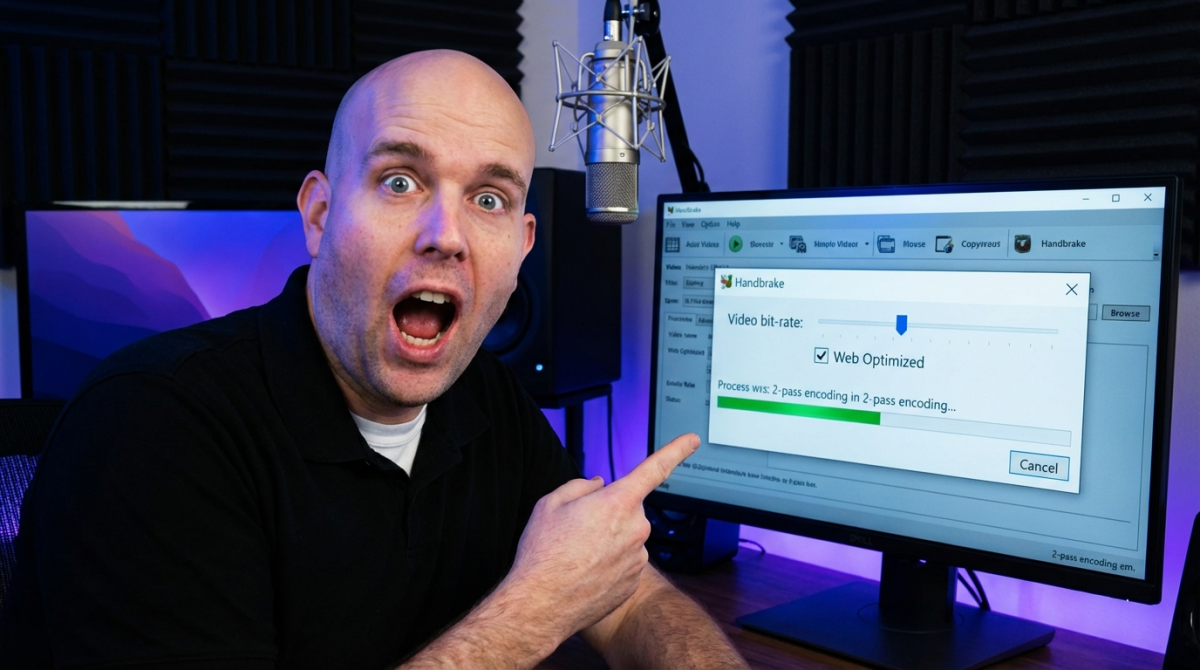
How I Encode Awesome h.264 Mpeg4 Streaming Movies For The Web
shoemoney
·
·
3 min read
I remember a couple years ago when I first started playing around with encoding video... it sucked. I had NO clue what I was doing and my only real choice was Vimeo at the time for HD video (this was before YouTube). My luck some asshole reported it as "commercial" content and it was all deleted... awesome...
I am kind of a control freak if you have not noticed it. I host my own images, videos, blog. Hosting your own stuff just gives you so much more freedom. Many times I will want to host a webinar but at full 4:3 800x600 resolution. You can't do that with YouTube. It letterboxes it and makes it look like crap.
But hosting your own video means you have to get the filesize down to a reasonable amount so that people can watch it without it buffering all the time. If you follow this guide you will easily be able to make video files that streamed fine over a 256k low end connection. Yea sure they wont stream over a 56k modem but is that audience going to buy your product? ya...
First of all you need to download handbrake for the mac (If you use a PC you have bigger issues then encoding video). Seriously though I am sure there are pc programs to do this out there... the settings should be the same.
First you select your video:
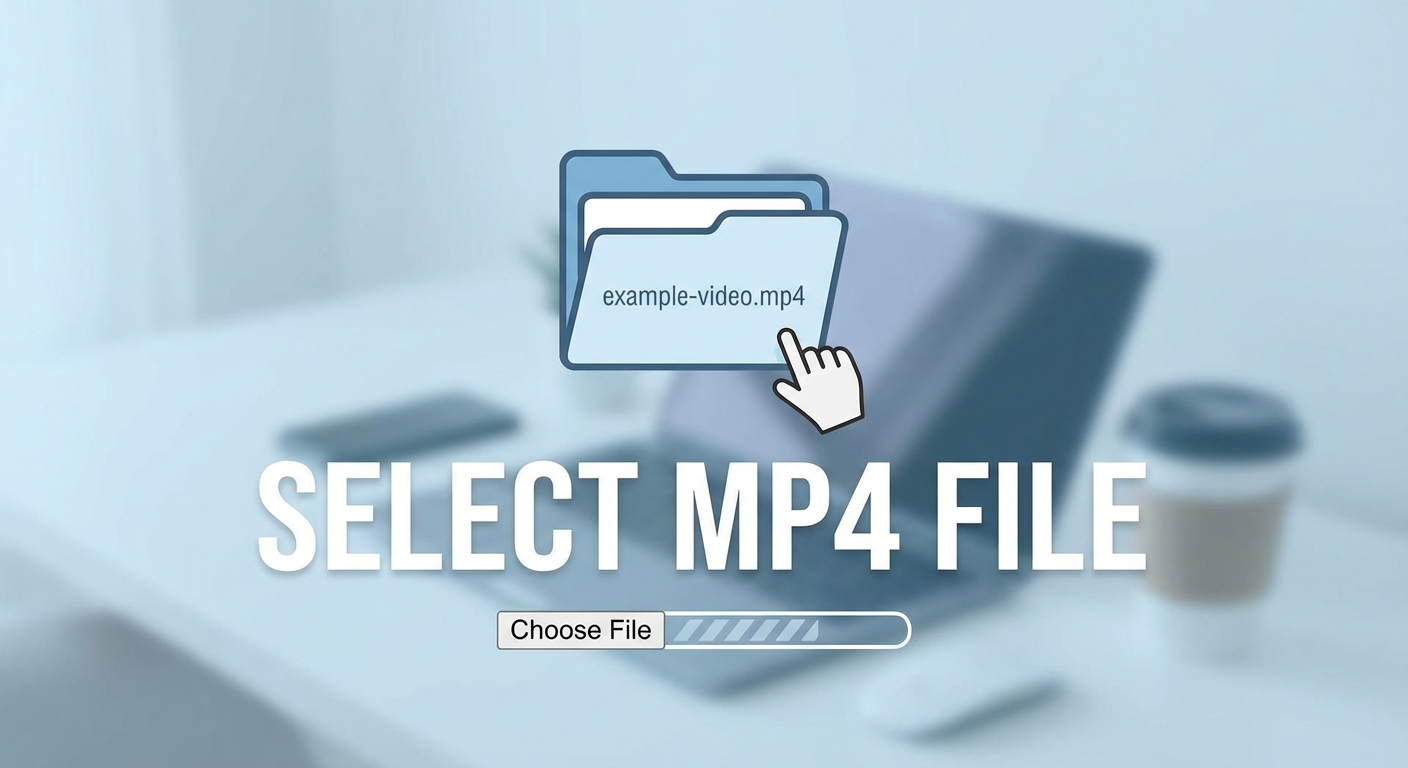
 Then we want to do is select the mp4 format:
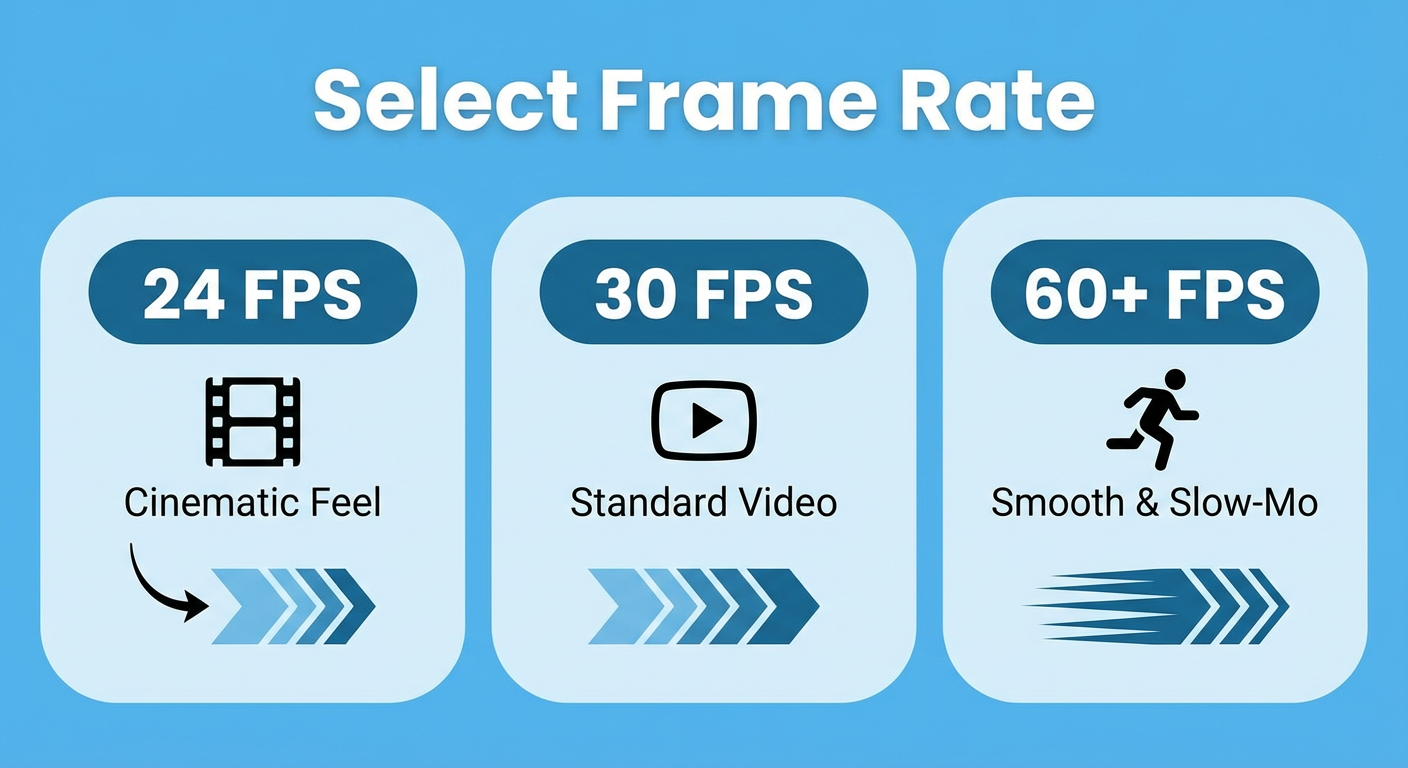
 Next you want to pick a frame rate. I always go with 23.976 FPS (wtf can't you just round up?). Can't really tell the difference between going any higher.
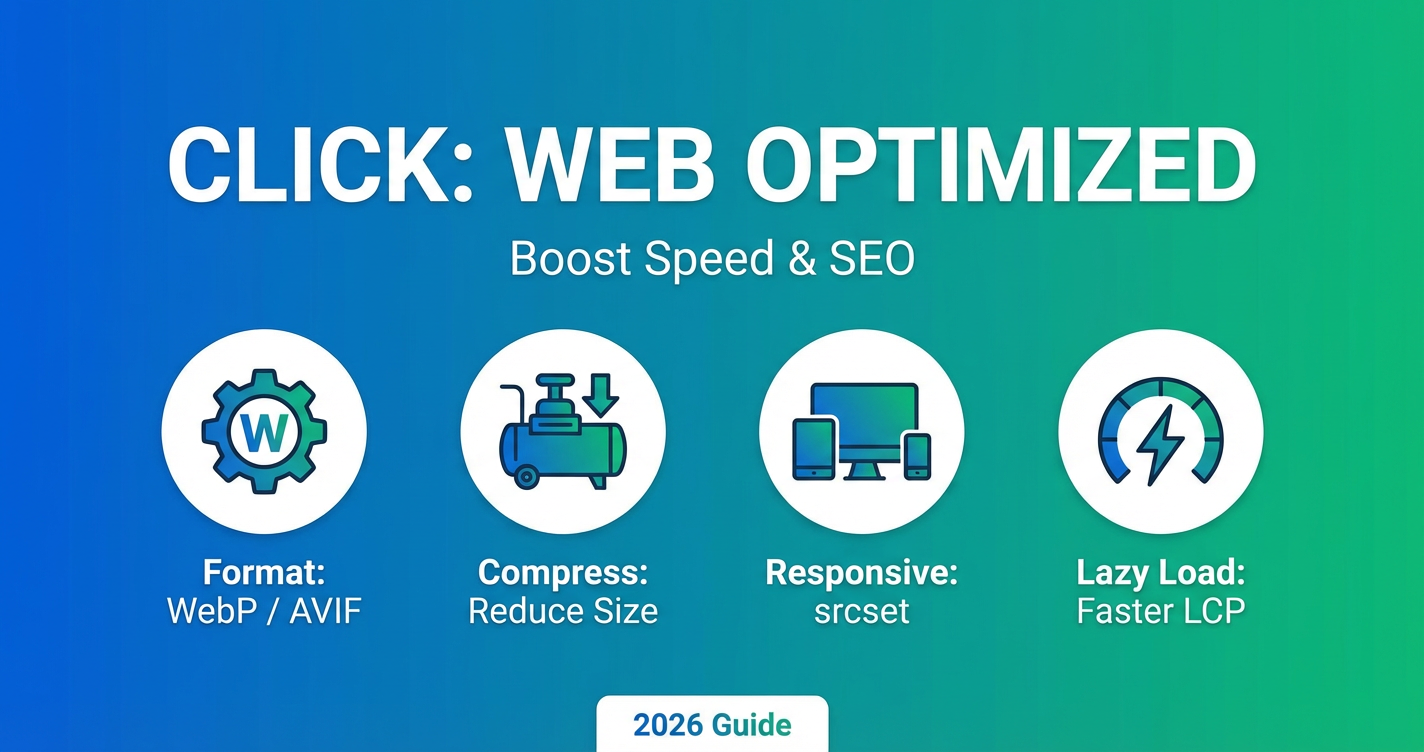
 Make sure you check the web optimized box. If you don't then people will have to wait for the entire video to download before it will start playing.
 The bitrate is really important. This is where you are going to want to experiment. For web content I have done anything 500 to 1500. Just depends.
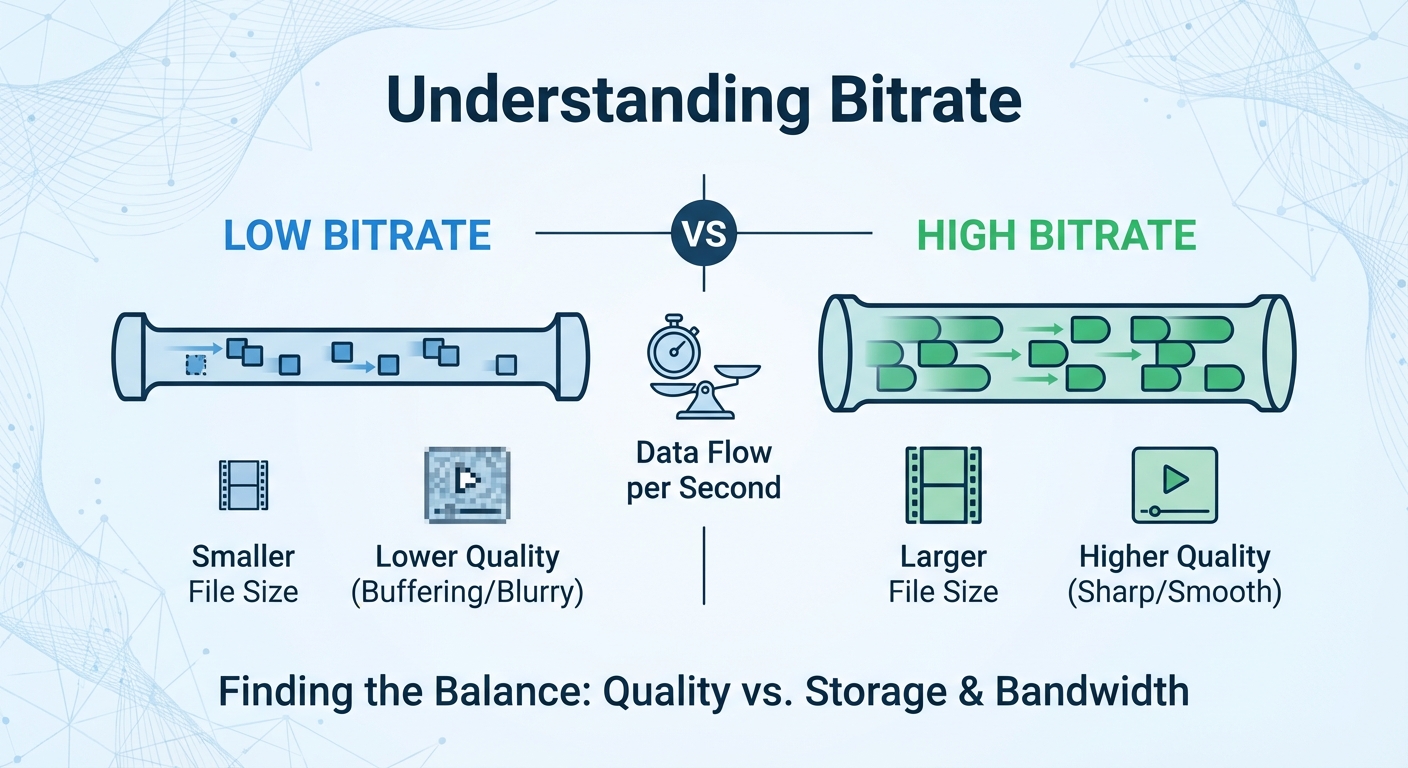 Once you set your bit rate you will have the option to do 2 pass encoding. You want to do this but DO NOT DO TURBO 2nd PASS.
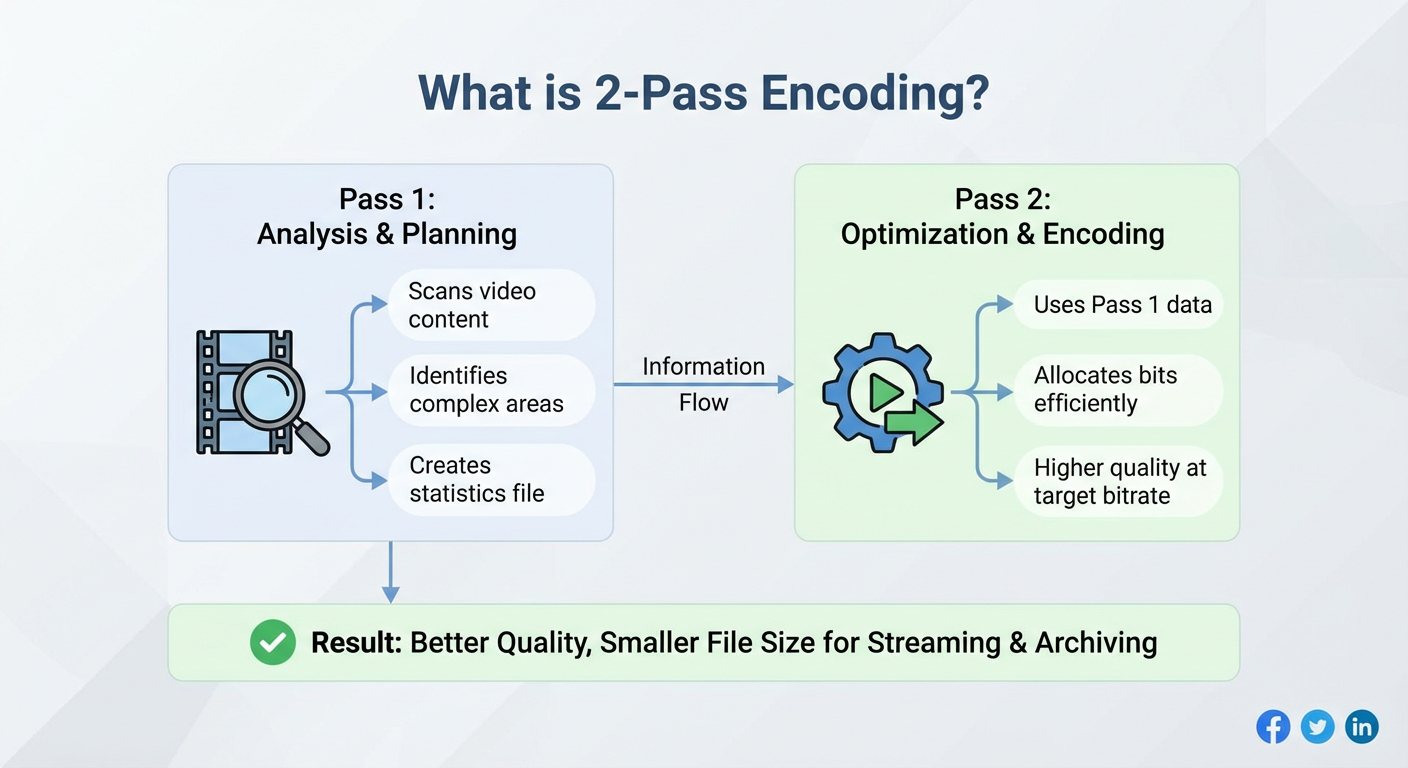 Flip to the "Advanced tab" and set the reference frame to 4. The higher the reference frame is set the better the quality of video. This will increase your file size also and encode time. The default is 2. I use 4. A good mix of slightly higher reference frames and lower bitrate will give you the best quality for the file size.
 Click on Picture setting and pick a size for your video. Use none for the anamaphoric setting.
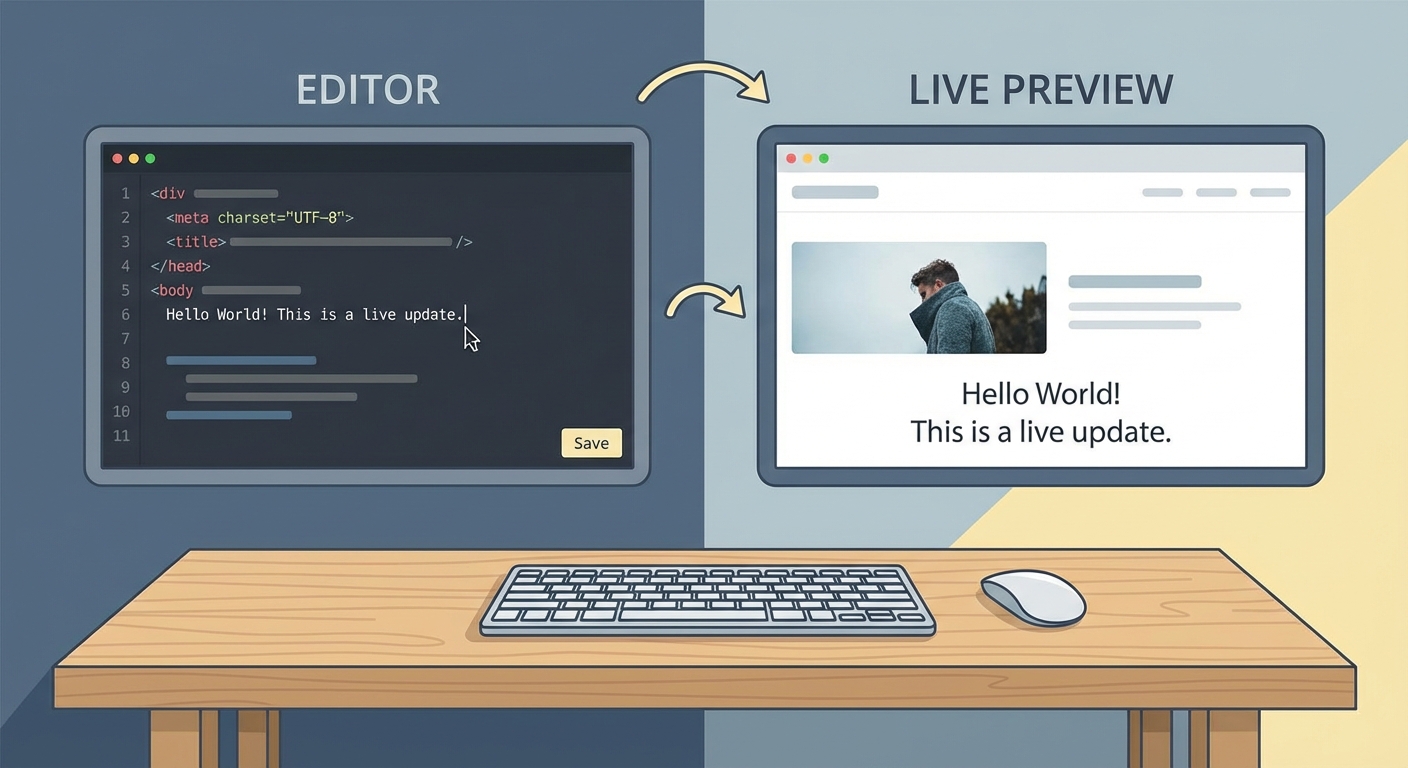
 The live preview box is your friend. Sucks to spend 2 hours encoding a video only to find out it looks like ass. This will show you a preview.
 For hosting - I use Amazon's S3 service to host the videos. Its super cheap to use. If you have the extra cash make a cloud front s3 bucket and then your videos will be super fast loading for anyone anywhere in the world.
If you have no money then get a free dropbox account and put it there. (then use your link to get tons of extra space).
Also I use a free wordpress plugin that uses flowplayer. Its really nice and easy.
Hope this was helpful!
If you have any questions just ask below and I will be happy to answer what I can.
For hosting - I use Amazon's S3 service to host the videos. Its super cheap to use. If you have the extra cash make a cloud front s3 bucket and then your videos will be super fast loading for anyone anywhere in the world.
If you have no money then get a free dropbox account and put it there. (then use your link to get tons of extra space).
Also I use a free wordpress plugin that uses flowplayer. Its really nice and easy.
Hope this was helpful!
If you have any questions just ask below and I will be happy to answer what I can.
Then we want to do is select the mp4 format:
Next you want to pick a frame rate. I always go with 23.976 FPS (wtf can't you just round up?). Can't really tell the difference between going any higher.
Make sure you check the web optimized box. If you don't then people will have to wait for the entire video to download before it will start playing.
The bitrate is really important. This is where you are going to want to experiment. For web content I have done anything 500 to 1500. Just depends.
Once you set your bit rate you will have the option to do 2 pass encoding. You want to do this but DO NOT DO TURBO 2nd PASS.
Flip to the "Advanced tab" and set the reference frame to 4. The higher the reference frame is set the better the quality of video. This will increase your file size also and encode time. The default is 2. I use 4. A good mix of slightly higher reference frames and lower bitrate will give you the best quality for the file size.
Click on Picture setting and pick a size for your video. Use none for the anamaphoric setting.
The live preview box is your friend. Sucks to spend 2 hours encoding a video only to find out it looks like ass. This will show you a preview.
For hosting - I use Amazon's S3 service to host the videos. Its super cheap to use. If you have the extra cash make a cloud front s3 bucket and then your videos will be super fast loading for anyone anywhere in the world.
If you have no money then get a free dropbox account and put it there. (then use your link to get tons of extra space).
Also I use a free wordpress plugin that uses flowplayer. Its really nice and easy.
Hope this was helpful!
If you have any questions just ask below and I will be happy to answer what I can.